




An interactive flat panel display combines a large 4K screen, touch control, built-in computing and presentation tools in one device. Businesses use it for meetings, training, document review and collaborative work without setting up a separate projector and whiteboard.
The buying decision extends beyond screen size. Touch performance, operating system, included tools, third-party software, room peripherals and mounting all affect how the display works after installation. This guide separates those parts so that buyers can compare configurations without assuming every interactive display includes the same software or conferencing equipment.
What Is an Interactive Flat Panel Display?
An interactive flat panel display, often shortened to IFPD, is a large LCD with an integrated touch system. Users can write on the screen, move objects, control applications and annotate documents with a finger or stylus.
Most current interactive flat panels use 4K resolution, giving presentations, spreadsheets, drawings and shared documents enough detail for group viewing. They may also include an Android system for everyday whiteboarding and presentation tasks, with an optional PC configuration for desktop applications.
An interactive flat panel is not the same as every other touch-enabled display:
| Product | Primary Use | Main Consideration |
| Interactive flat panel display | Group presentation, writing and collaboration | Software and conferencing accessories vary by configuration |
| Standard commercial display | Video, dashboards and digital signage | Usually lacks direct writing and touch control |
| Projector-based interactive whiteboard | Interactive presentation on a projected surface | Requires projection distance, alignment and suitable room lighting |
| Desktop touch monitor | Individual workstation control | Too small for normal meeting-room collaboration |
Choose an interactive flat panel when participants need to write, annotate or control content directly on the screen. If the room only needs to present scheduled videos or dashboards, a standard commercial display may be sufficient.
Four Decisions to Make Before Comparing Models
Before comparing processor names or touch specifications, define how the room will operate.
1. Room workflow: Will people mainly present slides, write on a shared canvas, review detailed drawings, run training sessions or join hybrid meetings?
2. Computing platform: Are the built-in Android tools sufficient, or does the room need a PC for desktop applications and company-specific software?
3. Screen size and installation: How far is the farthest viewer, and will the display be wall-mounted, embedded into the room design or placed on a mobile stand?
4. Software and peripherals: Which conferencing application, camera, microphone and collaborative office suite will the organization use?
These answers narrow the choice faster than comparing long feature lists. They also reveal which functions come from the display itself and which depend on a computer, third-party application or room accessory.
How an Interactive Display System Is Built
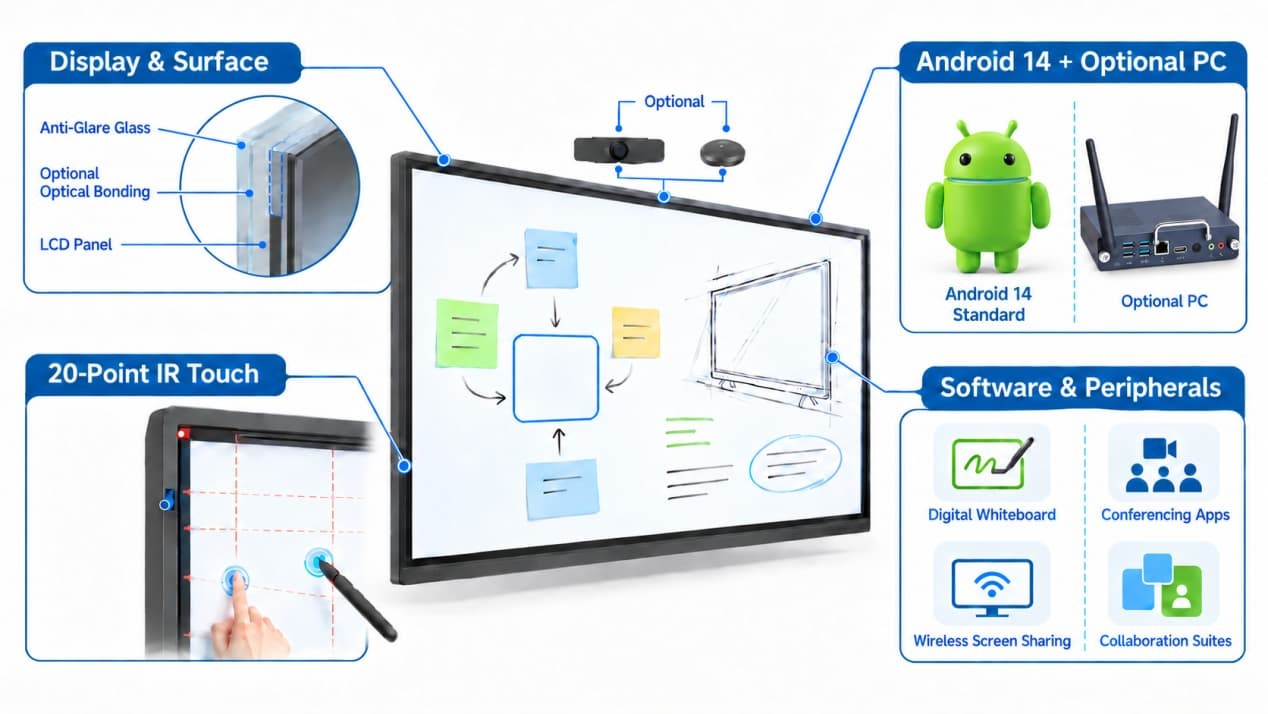
Display and Screen Surface
The display layer covers resolution, brightness, viewing angle, surface treatment and image quality. A 4K panel preserves fine text and drawing detail, but resolution alone does not determine whether content will be easy to read.
Reflections from ceiling lights and windows can reduce contrast. An anti-glare surface diffuses strong reflections so they are less distracting during presentations and writing.
Optical bonding is also available for projects that need closer integration between the protective glass and LCD. Bonding reduces the internal air gap, which can limit internal reflections and reduce the apparent distance between the touch surface and displayed image. It should be specified as an optional construction choice rather than assumed to be standard on every unit.
Room lighting still matters. The display should be evaluated from the main seating positions using the type of documents the room will actually show.
Touch and Writing
Infrared touch uses sensors around the screen perimeter to detect fingers and touch pens. It works with common writing tools and does not require a battery-powered stylus for basic operation.
Touch-point count describes how many inputs the system can register simultaneously. It does not tell you how many people can stand comfortably in front of the display. Screen width, software support and available floor space remain practical limits.
Response time also affects the writing experience. A shorter delay helps digital ink follow the pen more naturally, especially when users write quickly or draw continuous lines. Touch accuracy, glass structure and software processing should be considered alongside response time.
Android and Optional PC Configurations
Built-in Android allows the display to start and run common presentation functions without a separate computer. It is suitable for whiteboarding, wireless screen sharing, media playback and straightforward document work.
A PC configuration is useful when employees need desktop applications, company-controlled software or a familiar desktop environment. Depending on the project, the panel can be configured with an OPS computer or used with another compatible PC.
The choice should follow the organization’s software requirements. Test the actual applications, file formats, login process and network environment before rolling the system out across multiple rooms.
Built-In Tools and Third-Party Software
RusinDisplay interactive flat panels include a digital whiteboard and wireless screen sharing as built-in Android functions. Users can begin writing, annotating and presenting content without installing a separate playback computer.
Video-conferencing clients and collaborative office suites belong to a different software layer. The display supports third-party applications, while the customer or software provider remains responsible for the application, account, license and service configuration.
A camera and microphone can be added according to the room layout. Before deployment, test the selected conferencing application with the intended Android or PC configuration, camera, microphone and corporate network.
This distinction is important. Support for a conferencing application does not mean every display automatically includes the application license, camera and microphone required for a complete meeting room.
Choosing the Right Screen Size
Screen size should reflect both viewing distance and content detail. A slide with one headline is easier to read than a spreadsheet or technical drawing, even when both appear on the same display.
A 55- or 65-inch panel can suit smaller meeting rooms where viewers sit relatively close to the screen. A 75-inch interactive display is a practical starting point for many medium-sized meeting and training rooms. Larger 85-, 86- and 98-inch panels provide more working area for deeper rooms, larger groups or content with finer detail.
These are starting points, not fixed room-capacity rules. Display a representative document at the proposed size and check it from the farthest seat. If labels and figures are difficult to read, the solution may involve a larger screen, a different content layout or both.
Screen size also affects touch use. A large display gives several participants more room to work, but the upper portion must remain within practical reach. Mounting the panel too high may improve the view from the back of the room while making writing uncomfortable for the presenter.
Wall Mounting, Embedded Installation or Mobile Stand?
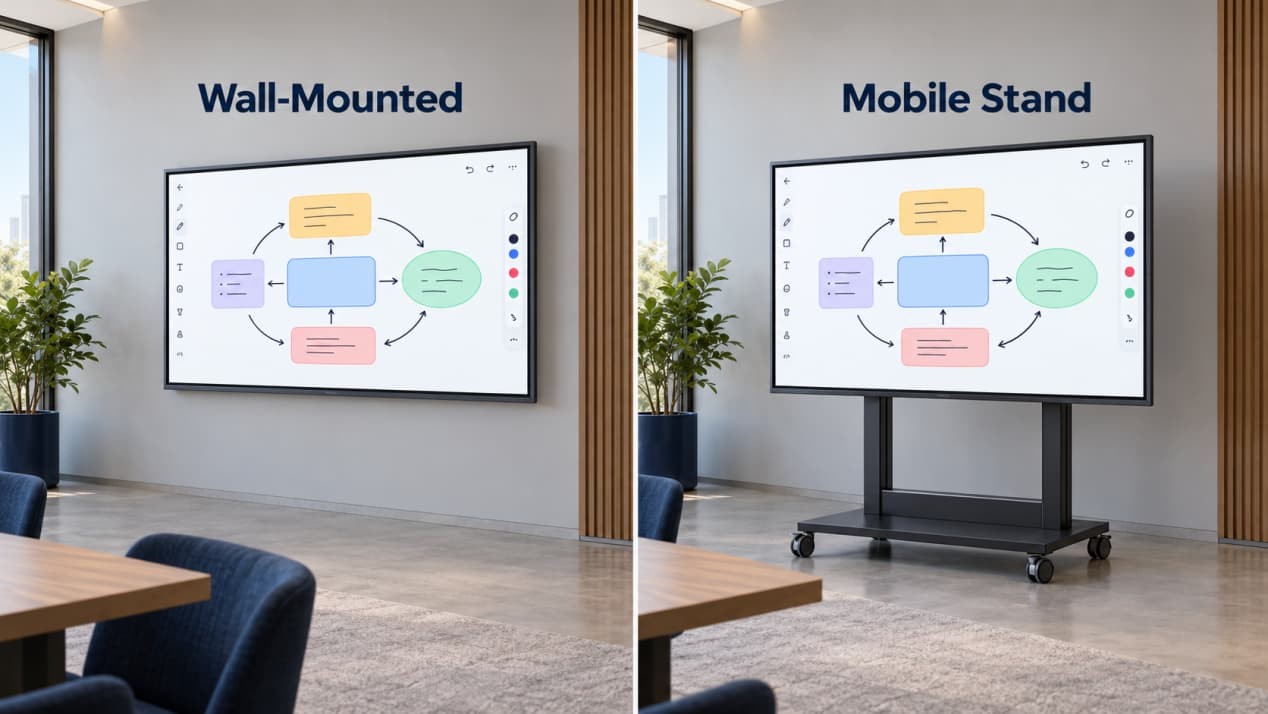
Wall mounting saves floor space and suits rooms with a permanent layout. The supporting wall must accommodate the display and mounting system, while power, network and signal connections should remain accessible for maintenance.
Embedded installation creates a cleaner architectural appearance. The surrounding structure must not block ventilation, ports or service access. The finished opening should also account for the actual enclosure dimensions rather than the nominal screen size alone.
A mobile stand allows one display to serve several rooms. The stand must be rated for the selected panel and remain stable when users press or write on the screen. Cable routing, door widths, floor transitions and storage position should be checked before choosing a mobile arrangement.
Whichever method is selected, confirm the final mounting height using both seated sightlines and standing reach. Installation drawings should be approved before the wall or surrounding joinery is completed.
A Practical 75-Inch RusinDisplay Configuration
The RusinDisplay 75-inch 4K interactive flat panel is a representative configuration for medium-sized meeting, training and collaboration spaces.
It combines a 3840 × 2160 display with 20-point infrared touch and a touch response time of no more than 8 ms. The protective anti-glare surface supports direct writing while helping control reflections from indoor lighting. Optical bonding can be configured when the project requires a reduced internal air gap and closer visual alignment between the writing surface and image.
An ambient-light sensor adjusts screen brightness automatically from 250 to 800 nits. This allows the panel to reduce unnecessary output in darker rooms while maintaining visibility under stronger indoor lighting.
Android 14 is the standard operating environment. The built-in digital whiteboard and wireless screen-sharing functions cover common presentation and annotation tasks, while an optional PC configuration supports desktop applications and other project-specific software.
Built-in speakers are standard. Cameras and microphones are optional so that the conferencing hardware can be matched to the size and acoustics of the room rather than forced into one fixed arrangement.
The wider RusinDisplay interactive flat panel series includes 55-, 65-, 75-, 85-, 86- and 98-inch models. Wall mounting is standard, while embedded installation and mobile stands can be configured for different room layouts. All RusinDisplay products include a three-year warranty.
Planning a 75-inch meeting-room installation? Contact RusinDisplay with your room size, mounting method, preferred computing platform and conferencing requirements to confirm the appropriate configuration.
Frequently Asked Questions
What is the difference between an interactive display and an interactive whiteboard?
An interactive flat panel is a self-contained LCD with integrated touch control. A traditional interactive whiteboard commonly relies on a separate projector, while “digital whiteboard” may also describe the software running on an interactive display.
Does an interactive flat panel need a computer?
Not for every task. The standard Android 14 system can run the built-in whiteboard, wireless screen sharing and common presentation functions, while an optional PC supports desktop applications and organization-specific software.
Are the digital whiteboard and wireless screen sharing included?
Yes. Both are built into the standard Android environment. Video-conferencing clients and collaborative office suites are compatible third-party applications and may require separate accounts, licenses or software-provider support.
Does the display include a camera and microphone?
Built-in speakers are standard, while cameras and microphones are optional. Selecting them separately allows the audio and video coverage to be matched to the room layout.
What does 20-point touch mean?
It means the touch system can register up to 20 contact points at once. The practical number of simultaneous writers still depends on screen size, application support and the space available in front of the display.
Is a 75-inch interactive display suitable for a meeting room?
It is a practical choice for many medium-sized meeting and training rooms. Confirm the final size by testing representative documents from the farthest viewing position and checking that the mounted screen remains comfortable to reach.
Is optical bonding included on every model?
No. Optical bonding is an available configuration rather than a universal standard feature. It should be confirmed when the project requires reduced internal reflections or closer visual alignment between the touch surface and displayed image.