




A digital wayfinding project usually begins with a simple request: help visitors find the right shop, office, clinic or departure point. The difficult part is deciding what each screen must do—and then matching its location, hardware and software to that task.
A fixed directory near an elevator does not need the same configuration as an interactive map in a shopping mall. An outdoor kiosk introduces another set of requirements: sunlight, temperature, enclosure protection and network access. Treating every location as the same touchscreen directory often increases cost without improving navigation.
A better plan starts with the visitor’s route through the property.
1. Decide Where Visitors Actually Need Help
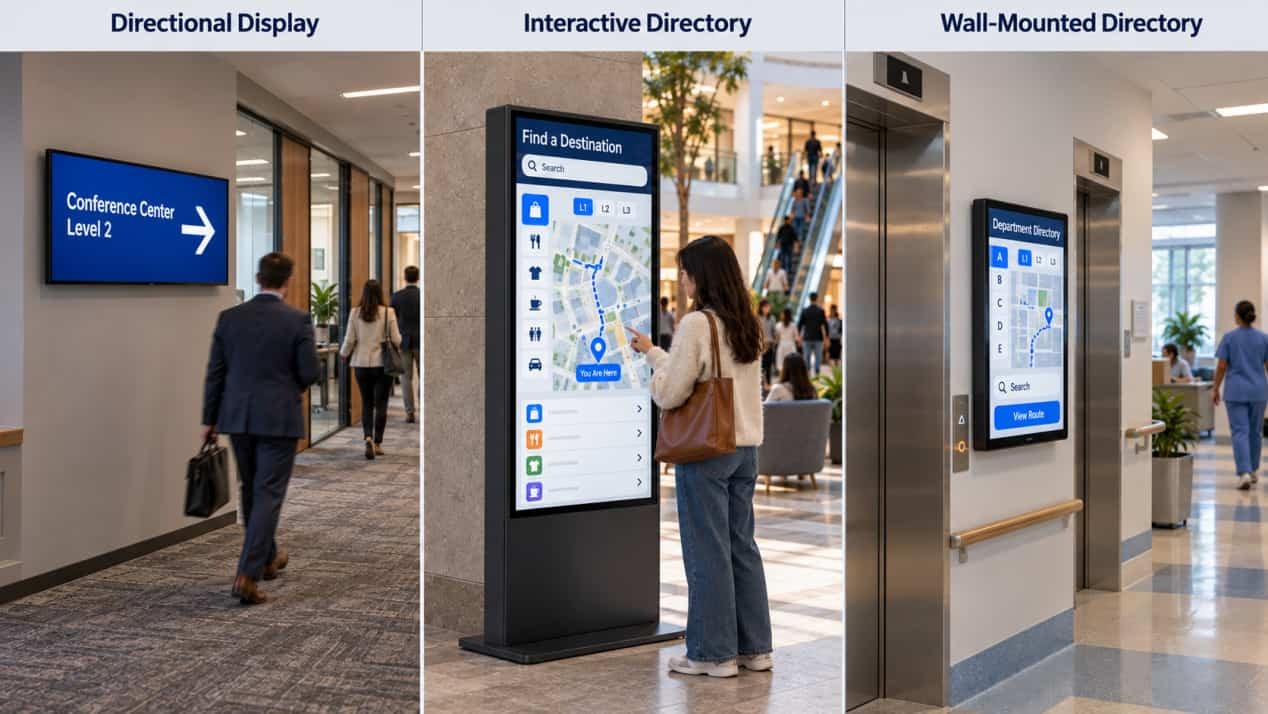
Most properties do not need an interactive kiosk at every decision point. Use interaction where visitors must search, filter or calculate a route. Use simpler digital wayfinding displays where the next direction is already known.
A typical system may include:
- A searchable directory at the main entrance
- A static floor directory beside an elevator bank
- Directional screens at major corridor junctions
- Outdoor kiosks at car parks, transit connections or campus entrances
- Smaller displays outside individual destinations
This distinction affects more than cost. A non-touch screen can present a clear arrow or floor list without asking the visitor to stop. An interactive wayfinding kiosk is more useful where someone needs to search by tenant, department, service or destination category.
The content should also match the viewing moment. Entrance directories can carry more detail because visitors expect to pause. Junction screens should use larger text, fewer destinations and an immediately recognizable direction.
Interactive wayfinding is not limited to freestanding kiosks. Wall-mounted or recessed touch displays can work well beside elevator banks, hospital departments and corridor junctions where floor space is limited. The same principles for interface height, clear approach space and accessible control placement still apply.
2. Indoor and Outdoor Wayfinding Need Different Hardware
Indoor kiosks operate in a controlled environment, but their position still matters. Reflections from glass entrances, overhead lighting and polished floors can reduce contrast. Protective glass is standard on RusinDisplay indoor freestanding kiosks, while AG or AR surface treatment and optical bonding can be configured when reflections or close-range interaction justify them.
RusinDisplay indoor freestanding kiosks cover 32- to 85-inch installations. Larger screens provide more room for maps and tenant lists, but size alone does not make the interface easier to use. Screen height, type size, control placement and viewing distance must be planned together.
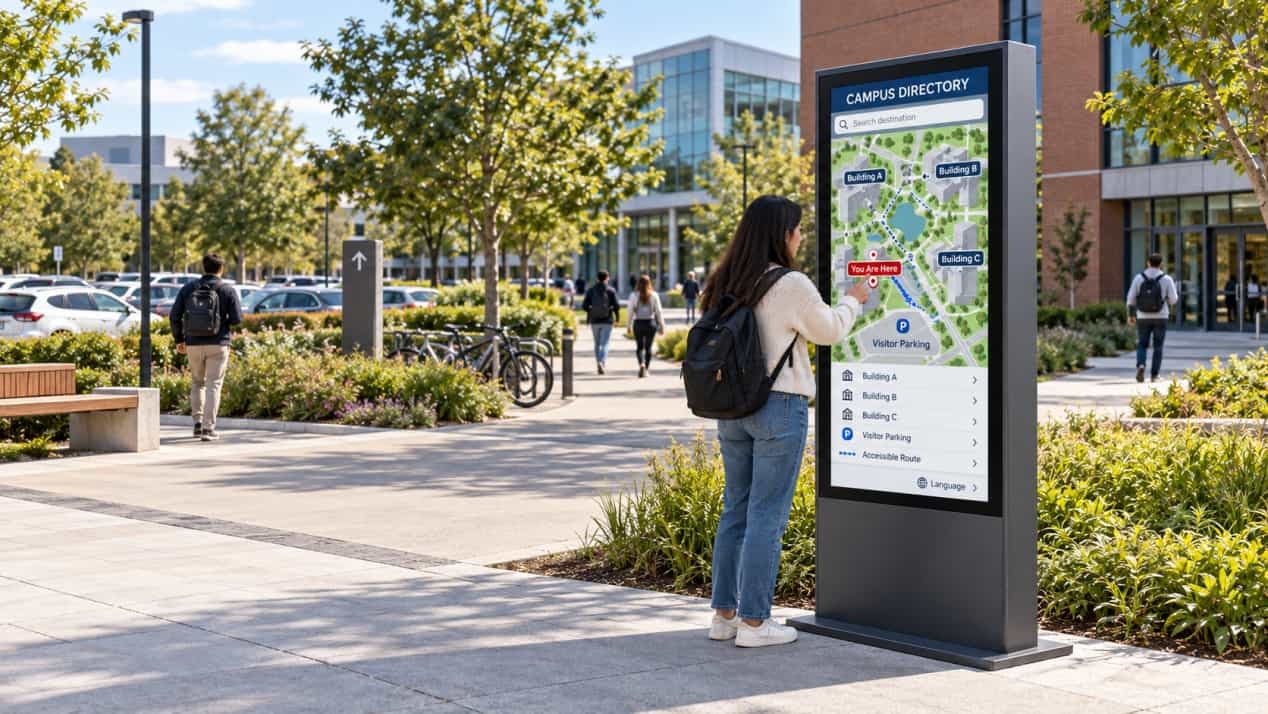
Outdoor installations require a complete outdoor structure—not simply a bright indoor panel placed beneath a canopy. The enclosure has to manage water, dust, solar heat, temperature variation and continuous exposure while keeping the screen readable.
For example, the 55-inch outdoor freestanding LCD kiosk can be configured with:
- 3,000-nit brightness, configurable up to 5,000 nits for more demanding daylight conditions
- Automatic brightness adjustment through an ambient-light sensor
- A standard operating temperature range of −25°C to 50°C
- An optional wide-temperature LCD configuration rated from −35°C to 75°C
- An IP66 enclosure
- An IP68-rated power supply
- IK10 impact resistance
- Optional PCAP touch
Optional 4G connectivityThese specifications apply to this representative outdoor configuration rather than every display in the category. Brightness supports daylight visibility; the enclosure, power system and thermal design determine whether the complete unit is suited to outdoor operation.
3. Choose Touch by the Interaction, Not by Screen Size
Touch is useful when visitors need to search, change language, filter destinations or select a route. It adds little value to a screen that only shows a fixed arrow or directory.
For indoor freestanding configurations, RusinDisplay can provide 10-point PCAP or 10-point infrared touch, with 20-point IR available as an upgrade.
| Touch option | Suitable use | Practical reason |
| Non-touch | Directional signs, floor directories and scheduled information | Lower configuration cost and fewer touch-related maintenance points |
| 10-point PCAP | Polished public directories and gesture-led interfaces | Flat glass surface and familiar finger interaction |
| 10-point IR | Large directories and cost-sensitive interactive projects | Practical multi-touch control at larger screen sizes |
| 20-point IR | Applications requiring more simultaneous touch inputs | Additional touch capacity where the software can use it |
IR can be practical where users may wear gloves or interact with a compatible passive pointer, although performance should be confirmed with the selected sensor frame. PCAP provides a flat surface that is easier to wipe in high-touch locations. Glove response, cleaning chemicals and environmental sealing still depend on the selected touch stack and surface treatment.
Outdoor PCAP is available as an option, but the interface must also be designed for outdoor use. Small buttons, dense maps and low-contrast controls become difficult to use when reflections, weather and standing distance are added to the interaction.
4. Design the Interface Around a Real Journey
A touchscreen directory should not open with a miniature building plan and expect every visitor to interpret it. Search and destination selection should come first. The map can then explain the route.
A practical sequence is:
- Select or search for a destination.
- Confirm the starting position.
- Display the recommended route and destination details.
- Offer another language or an accessible interface where required.
- Return automatically to the start page after inactivity.
The “You Are Here” position must reflect the physical kiosk location. Reusing one map across several terminals without changing the starting point can produce routes that begin from the wrong entrance or point visitors in the opposite direction.
Content organization should follow the way visitors describe destinations rather than the structure of the property database. A shopping centre may organize tenants by category and floor. A hospital may need departments, clinics and accessible routes. A business campus may prioritize buildings, reception desks, meeting centres and car parks.
Where supported by the third-party platform, a dynamic QR code can transfer a selected route to a mobile web page or progressive web app. Visitors can continue navigating on their phones without installing a dedicated application.
5. Separate the Display Hardware From the Wayfinding Software
The kiosk and the wayfinding platform are different parts of the project.
RusinDisplay supplies the commercial display hardware, integrated computing options, touch configuration and interfaces required for third-party software integration. The property owner, system integrator or software provider is responsible for the map engine, route calculation, tenant database, analytics and application workflow.
This division should be agreed before production. The software team needs the selected operating environment, resolution, orientation, touch method and interface requirements. The hardware team needs to know whether the application will run locally, through a browser or through a managed third-party platform.
Android and Windows configurations are available according to the project. Windows 10 or 11 may be selected where the chosen wayfinding application depends on desktop software or specific peripheral drivers. The final operating system should follow the software requirement—not the other way around.
Peripheral integration may include scanners, cameras, NFC readers or other project-specific devices, but these should only be added when the wayfinding workflow uses them. Unused accessories increase cost and integration work without helping visitors.
6. Plan Accessibility and Circulation Before Fixing the Base
A directory kiosk should be easy to approach without narrowing the route around it. Avoid placing a freestanding unit in the centre of a pedestrian path simply because that position is visually prominent. A location beside an entrance, structural column or wall can preserve visibility while keeping the circulation route open.
Accessibility Note
Under the U.S. 2010 ADA Standards, many unobstructed operable parts use a reach range of 15–48 inches (380–1,220 mm) above the floor. This applies to essential interactive controls—not necessarily the entire touchscreen. Obstructions, approach direction, clear floor space and local regulations may change the final installation requirements.
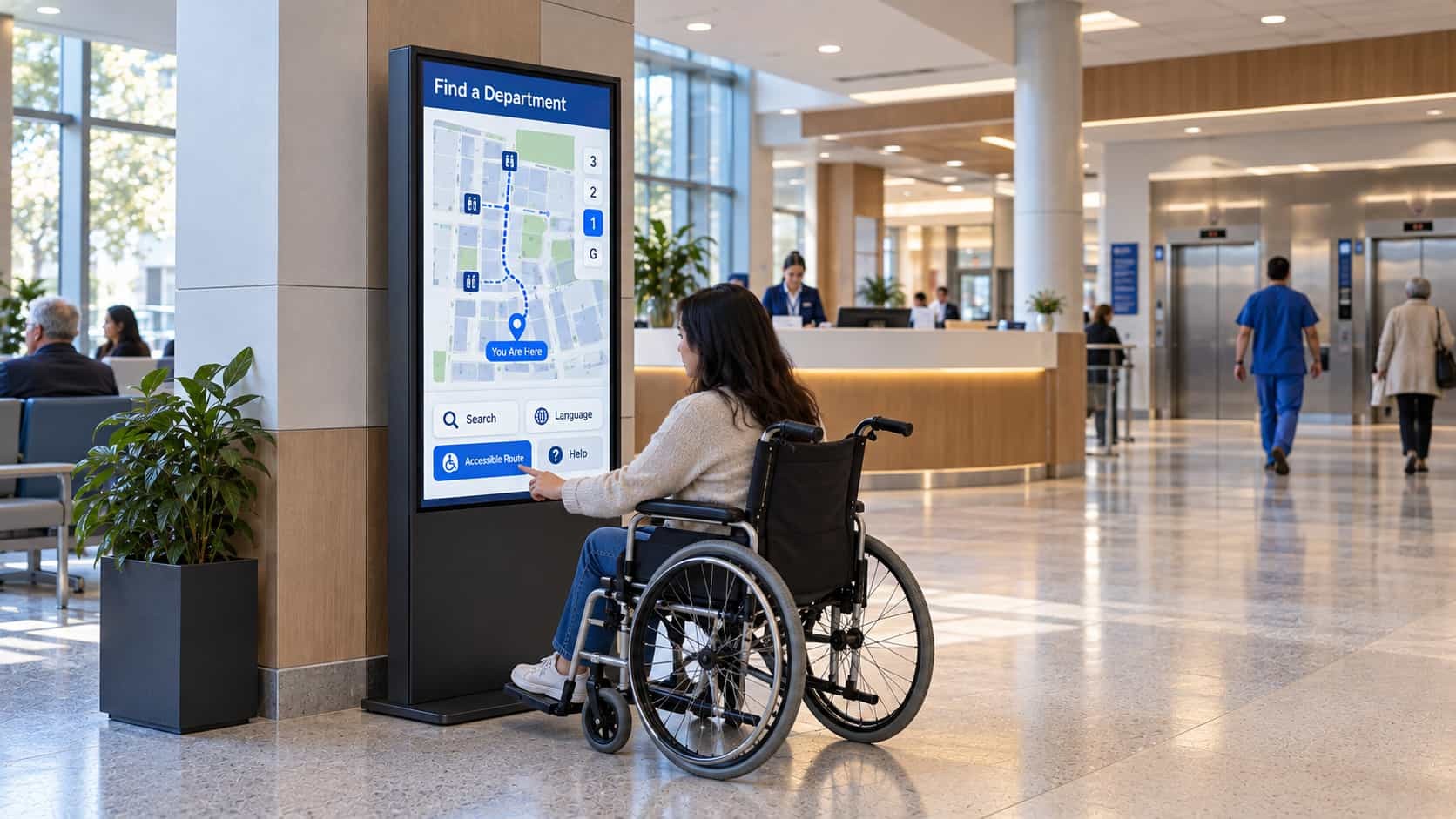
On a large portrait display, search, language selection, route confirmation and help functions can remain within the lower interaction area. A reachable-interface mode can move primary controls downward, but the complete installation—including kiosk position and clear approach space—must still be reviewed.
Wall-mounted and recessed touchscreen directories require the same planning. Installation height, projection from the wall and the clear space directly in front of the display can all affect accessibility and circulation.
7. Prepare Public-Facing Hardware for Daily Use
Public directories are exposed to repeated touching, cleaning and accidental impact. In unsupervised locations, the project team should decide whether the installation needs impact-rated glass, a securely anchored base, restricted service access or internal cable routing.
The representative 55-inch outdoor configuration includes IK10 impact resistance and should be anchored according to the site and installation design. Indoor models include protective glass, but IK ratings and other security features should be confirmed for the selected configuration rather than assumed across the entire range.
The base is part of the safety plan. It must suit the kiosk height, screen weight, floor construction and expected public contact. Outdoor installations may require embedded or anchor-bolt fixing.
Indoor freestanding units are normally installed at a planned fixed position. If the layout requires frequent relocation, tell the supplier before production so that an appropriate mobile structure, locking casters and cable-management method can be considered.
Power and network cables should not cross pedestrian routes or remain accessible around the base. These services are easier to conceal when their locations are coordinated before the flooring and electrical work are completed.
8. Plan the Network and Recovery Behavior Together
Ethernet remains the preferred connection where fixed network cabling is available. It provides a predictable link for software updates, content synchronization and remote support.
For outdoor campuses, car parks and other locations where running a network cable is impractical, RusinDisplay can configure optional 4G connectivity. Signal strength, regional carrier compatibility, SIM provisioning and responsibility for the data plan should be confirmed before production.
A cellular connection does not remove the need for offline planning. If the application supports local content or route-data caching, the project team should decide which functions remain available during a network interruption. A cached directory may continue showing previously downloaded information, but live tenant changes, event updates or facility data will not refresh until connectivity returns.
Power recovery matters as well. After electricity is restored, the unit should start the operating system and reopen the approved wayfinding application in full-screen mode. It should not stop at a desktop, browser error page or login prompt. This behavior depends on the operating-system setup and third-party application, so it should be included in commissioning.
Before handover, test the system under realistic conditions:
- Restart it after a complete power interruption.
- Disconnect the network and check the intended offline behavior.
- Confirm that each kiosk loads the correct map and starting position.
- Test touch accuracy around the edges and corners.
- Verify any connected peripherals through the application.
- Check screen readability under daytime and evening lighting.
These tests reveal integration problems that are easy to miss when the kiosk is inspected only as a powered display.
9. Start With a Project Configuration, Not a Generic Kiosk
A commercial property may use a non-touch directory beside elevators, a wall-mounted touchscreen near a hospital department, an interactive freestanding kiosk in the lobby and a protected outdoor unit near the car park. These endpoints can share visual branding and destination data without using identical hardware.
For indoor projects, the 55-inch freestanding digital signage model provides a practical reference point for lobby and directory applications. Touch, computing and surface treatment can then be matched to the software and site.
RusinDisplay supports orders from one unit, with a standard lead time of approximately 5–10 working days for confirmed standard configurations. Custom structures, computing platforms, surface treatments and integration work require additional production time. All RusinDisplay products include a three-year warranty under the applicable warranty terms.
For a new directory project, contact RusinDisplay with the intended location, indoor or outdoor exposure, screen orientation, interaction requirements and third-party software environment. The team can then match the display structure and system configuration to the project instead of forcing one kiosk format into every location.
Frequently Asked Questions
Does every digital wayfinding sign need a touchscreen?
No. Touch is useful for destination search, route selection and multilingual navigation. Static directional screens and floor directories are often clearer and less expensive when visitors only need one immediate instruction.
Can a wayfinding touchscreen be wall-mounted?
Yes. Wall-mounted and recessed interactive displays are useful near elevator banks, hospital departments and corridor junctions where a freestanding base would occupy too much floor space. Installation height, accessible control placement and clear approach space still need to be planned.
Who supplies the maps and wayfinding application?
RusinDisplay supplies the display hardware, computing options, touch system and required integration interfaces. Mapping, route calculation, tenant databases and application design are normally provided by the customer or a third-party wayfinding software company.
Is a bright indoor screen suitable for outdoor wayfinding?
Not by brightness alone. A complete outdoor kiosk also needs an appropriate enclosure, protected power system, thermal design, operating-temperature range and installation method. A high-brightness indoor display does not automatically provide these capabilities.
Is PCAP or IR better for an indoor touchscreen directory?
PCAP is often selected for a clean, flat front surface and familiar gesture-based interaction. IR can be cost-effective on larger displays and may suit projects requiring gloved input or compatible passive pointers. The final choice should follow the interface, cleaning routine and installation environment.
Can an outdoor kiosk use a cellular connection?
Yes. RusinDisplay can configure optional 4G connectivity for projects where Ethernet installation is impractical. Carrier compatibility, signal strength, SIM provisioning and the data plan should be confirmed for the project location.
Can a route be transferred from the kiosk to a visitor’s phone?
Yes, when the third-party wayfinding platform supports it. A dynamic QR code can open the chosen route in a mobile browser or PWA, allowing the visitor to continue without downloading a separate application.