




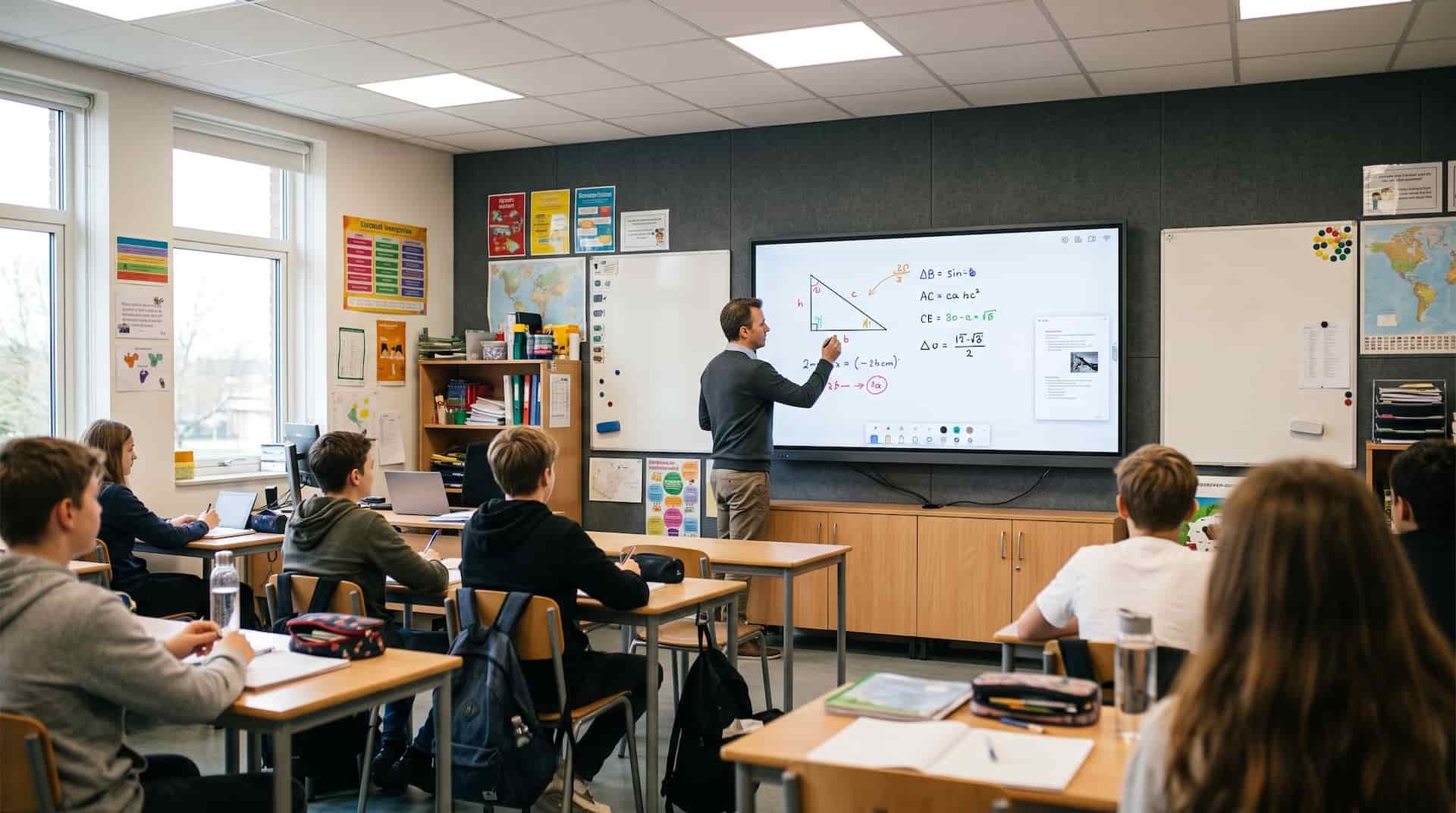
An interactive flat panel earns its place in a classroom when teachers can walk in, open a lesson and start teaching without rebuilding their routine around the equipment.
RusinDisplay offers 55-, 65-, 75-, 86- and 98-inch classroom interactive flat panels. Each model combines a 4K touchscreen, Android 14, whiteboard tools, wireless screen sharing and built-in speakers. A Windows 10 or Windows 11 OPS computer can be added when the school relies on Windows software.
The most reliable way to choose a panel is to begin with the lesson. Decide what teachers and students will do at the screen, then specify the hardware that supports those actions.
What Does an Interactive Flat Panel Do in a Classroom?
An interactive flat panel is a large LCD touchscreen with its own operating system, speakers and classroom connections. It can display lesson material, work as a digital whiteboard, play video, accept a teacher’s computer and show content shared from student devices.
It differs from an older projector-based interactive whiteboard in one important respect: the image comes from the panel itself. There is no projector to align and no teacher shadow across the picture while writing.
The panel can run from Android 14, an optional Windows OPS computer or an external laptop. Schools do not need every option in every room. The right setup depends on the teaching software already in use.
Which Interactive Flat Panel Size Suits the Room?
Start with the farthest seat and the smallest text students must read. Then check the available wall area and the height of the controls teachers and students will touch.
| Screen size | Where it usually fits | Typical classroom work |
| 55 inches | Tutoring rooms and small training spaces | Close-range instruction and small-group work |
| 65 inches | Small to medium classrooms | Slides, video and routine whiteboard use |
| 75 inches | Standard classrooms | More writing space and clearer viewing from rear seats |
| 86 inches | Large classrooms and university teaching rooms | Detailed diagrams, group work and larger audiences |
| 98 inches | Lecture rooms, auditoriums and shared training spaces | Long-range viewing and large-format presentations |
Do not approve a size from a floor plan alone. Put a normal lesson slide on the proposed screen and read its smallest essential text from the back row. That test quickly exposes a screen that is too small or a slide template that is too dense.
Physical planning changes sharply at the upper end of the range. The reference 55-inch unit weighs about 33 kg; the 98-inch version weighs about 110 kg. Wall construction, bracket capacity, delivery access and lifting arrangements need to match the actual model.
What Hardware Makes Writing Feel Natural?
Touch performance is the first thing a teacher notices. RusinDisplay classroom panels use 20-point infrared touch with a specified response time of no more than 6 ms. Accuracy is rated at ±1 mm over the central 90% of the active area and ±3 mm around the outer 10%. Input works with a finger, stylus or pointer.
Twenty touch points allow several students to write or move objects at once. A normal teacher-led lesson may use only one or two, but the extra capacity is useful for matching exercises, group annotation and side-by-side problem solving.
The standard whiteboard includes freehand writing, annotation, additional pages, image and PDF insertion, screenshots, undo and content sharing. Teachers can also write over a connected computer or another active input instead of moving material into a separate whiteboard application.
AG anti-glare glass is optional. It is worth considering when windows or ceiling lights reflect across the teaching wall. A room with controlled lighting may not need it, so the decision is best made from site photographs or a sample installation.
How Well Does the Panel Show Everyday Lesson Content?
All five sizes use a 3840 × 2160 4K display with a 16:9 aspect ratio, 60 Hz refresh rate and 178-degree viewing angle. Typical indoor brightness is at least 350 nits.
Those figures suit slides, diagrams, spreadsheets and classroom video, but they do not fix poor content design. Small labels remain hard to read on a large screen. Test the files teachers already use, including subtitles, spreadsheet cells and science diagrams, before approving the final size.
Two built-in 10 W speakers cover ordinary lesson audio and presentation sound. A noisy training room or large lecture space may still need a separate audio system.
How Does an Interactive Classroom Display Support Group Work?
A collaborative lesson often moves through several sources: a student’s laptop, the teacher’s presentation, a browser page and a whiteboard. The panel supports that workflow through wireless screen sharing and wired HDMI or USB-C connections.
USB-C carries video, touch return, data and device charging. A teacher can connect a compatible laptop, show the lesson and control it from the panel without running separate video and touch cables.
During group work, a student can share a worksheet, the teacher can mark it on screen, and several students can add answers through the 20-point touchscreen. The completed board can then be saved or shared.
Casting still needs a classroom test. Try the school’s actual Windows, macOS, Android and iOS devices on the intended network. Permissions, software versions and network policies often affect the experience more than the display specification does.
What Should Be Added for Hybrid Teaching?
Hybrid teaching requires the panel to run the meeting platform, show remote participants and handle sound and video from the room. The camera and microphone should match the room rather than the screen diagonal.
All five RusinDisplay sizes can be supplied with optional or customized camera and microphone systems. A small training room may only need a compact camera and microphone. A university classroom may require a wider camera view and separate audio pickup. Lecture capture may be better served by dedicated AV equipment connected to the panel.
The panels support compatible third-party teaching and conferencing applications. Before production, provide the application name and version so it can be checked on the proposed Android or Windows configuration.
Should a School Choose Android 14 or a Windows OPS?
Android 14 covers the everyday functions most teachers expect: whiteboarding, annotation, media playback, wireless sharing and compatible Android applications. It also allows the panel to operate without a separate classroom computer.
A Windows OPS is useful when lessons depend on Windows desktop software, specialist simulations or a particular conferencing platform. Its processor, memory and storage are selected for the project rather than fixed across the whole product range.
| System choice | Best fit | Check before ordering |
| Android 14 | Whiteboarding, media, casting and compatible teaching apps | Application availability, login method and file support |
| Windows 11 OPS | Windows teaching software and desktop applications | Processor, memory and storage required by the software |
| Windows 10 OPS | A legacy application that has not moved to Windows 11 | The school’s security and maintenance plan |
| External laptop | Existing teacher devices or a managed computer fleet | HDMI or USB-C video plus touch return |
Windows 11 is the sensible choice for most new OPS deployments. Microsoft ended standard Windows 10 support on October 14, 2025. A new Windows 10 installation therefore makes sense only for a required legacy application with a defined support plan.
What Should the School IT Team Test?
The standard panel provides local device management. Schools that need centralized fleet management should define and test a separate management platform instead of assuming cloud MDM is included.
For a multi-room rollout, begin with one pilot unit in a working classroom. Ask teachers to complete the tasks they perform every day:
- Start a lesson and open an existing presentation.
- Write at the center and edges of the screen.
- Connect a laptop through HDMI and USB-C.
- Cast from the mobile and desktop devices used on campus.
- Play a video with sound.
- Switch between Android and the OPS computer.
- Sign in to browser-based learning services.
- Open the school’s usual files and third-party applications.
- Test the camera and microphone when selected.
Note every step that needs IT help. A connection that works in a showroom may behave differently under school account controls, segmented Wi-Fi or restricted application policies.
Office applications also vary by market. International buyers should list the software they require rather than assume that one office package is supplied worldwide.
How Should the Panel Be Installed?
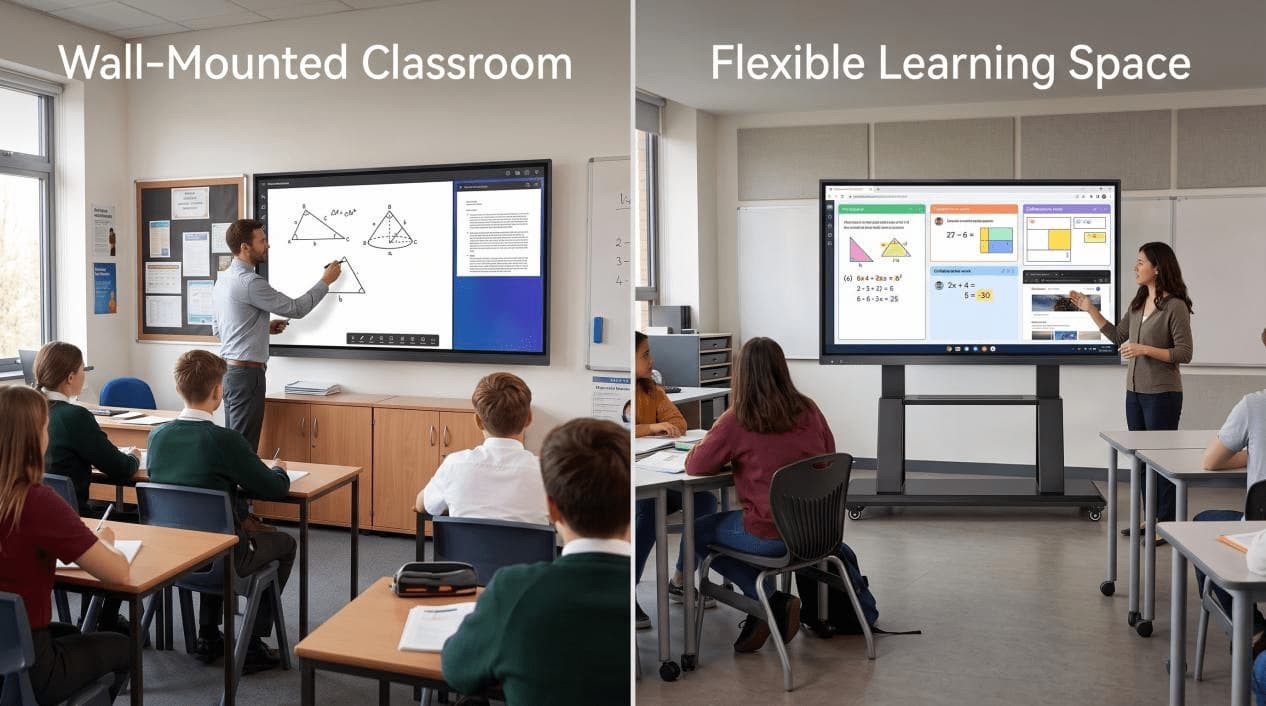
Wall mounting is the standard choice for a permanently assigned classroom. It keeps the floor clear and fixes the screen at a consistent teaching position. The supporting wall and bracket must be rated for the chosen model.
A mobile stand makes sense when several rooms share a panel. Check its load rating and stability, then walk the proposed route. Doorways, thresholds, lifts and stored cables can turn a theoretically mobile display into one that rarely leaves the room.
Set the screen low enough for teachers and students to reach the main controls without stretching. Seated users should still be able to see and operate the lower part of the interface. Power, data, sunlight and any camera position belong on the installation drawing before work begins.
At handover, test the touch surface, writing response, 4K input, USB-C, HDMI, audio, wireless sharing, Android/OPS switching and the applications used by the school.
What Belongs on the Purchase Order?
Avoid ordering a generic “smart board.” State the required model and classroom configuration:
- RUS-LCD-IFP55, IFP65, IFP75, IFP86 or IFP98
- Wall bracket or mobile stand
- Standard Android 14 or an optional Windows OPS
- Required OPS processor, memory and storage
- Optional AG glass
- Camera and microphone requirements
- Teaching and conferencing applications to be checked
- Wired and wireless connections
- Interface language and regional electrical requirements
- Installation responsibility
- Documents required by the destination market
RusinDisplay provides a three-year warranty and accepts orders from one unit. Standard configurations normally take 3-5 working days. Custom computing, camera, microphone, appearance or software work takes longer.
The product is designed to meet CE and FCC requirements, uses RoHS-compliant materials and follows EMC compliance design. CB certification support is available upon request. If a tender requires particular paperwork, include it in the quotation request.
Start With the Lesson, Not the Specification Sheet
Choose the screen size from the room and the content students must read. Match the operating system to the school’s applications. Add AG glass, cameras, microphones or a mobile stand only when the teaching environment calls for them.
View the RusinDisplay Interactive Flat Panel range, or send the classroom dimensions, viewing distance, software list and installation preference for a project-specific configuration.
FAQ
What size interactive flat panel is best for a classroom?
Use 65 inches as a starting point for smaller rooms and 75 inches for many standard classrooms. Large classrooms, university rooms and lecture spaces may require 86 or 98 inches. Confirm the choice with real lesson content viewed from the farthest seat.
Does an interactive flat panel need a computer?
Not for basic classroom use. Android 14 runs the whiteboard, annotation, media and compatible applications. Add a Windows OPS or external laptop when a lesson requires Windows software.
Can teachers install third-party applications?
Yes, when the application is compatible with the selected Android or Windows configuration. Test its login, required services and main classroom workflow before a larger order.
Can the panel be used for hybrid classes?
Yes. Cameras and microphones are available as options or custom configurations across the size range. Select their coverage for the room, not simply for the screen size.
Is a wall mount better than a mobile stand?
Wall mounting works well for a dedicated classroom. A mobile stand is useful for shared equipment, provided its load rating, stability and route between rooms have been checked.
Is an interactive flat panel the same as an interactive whiteboard?
The terms overlap, but older interactive whiteboards normally use a separate projector. An interactive flat panel has its own LCD image and can run from Android, an OPS computer or a connected laptop.